Dynamics 365 Data Migration
Bring your records, history, and files into Dynamics 365 and Power Platform. Then check that the numbers match before your team switches over.
Records, history, and files into Dynamics 365, checked before you switch.
Overview
The Hard Part Of A Migration Is The History.
Moving today’s accounts and contacts is fairly simple. The harder part is everything that built up around them over the years: emails, notes, attached files, closed deals, and old cases. This is where problems show up after go-live. Records carry the day they were loaded instead of the day they were created. An email loses the contact it belonged to. Records owned by people who left have nobody to go to.
Dynamics 365 is not the only thing using this data. Power BI pulls your weekly numbers from it, Power Apps and Power Automate run on it, and so do Power Pages and Copilot Studio. That is why we only call a migration finished when your team can find what they had before, on the right record and with the right dates. You also get the counts to prove it.
Common Problems
Where Migrations Go Wrong
These problems come up again and again in Dynamics 365 moves. We plan for each one from our migration playbook, before the first test load.
01
Dates Reset To The Load Date
What We Do:
We carry the original created-on date across for every record that allows it.
02
Owners Who Have Left
Every record in Dynamics 365 needs an owner. Old records often belong to staff who left years ago and have no user in the new system.
What We Do:
Before anything moves, we agree with you who takes over those records, such as a manager or a team.
03
Emails On The Wrong Record
Activities, notes, and files only make sense on the record they belong to. Load things in the wrong order and those links break.
What We Do:
We load in a set order and check that each activity lands on the same customer as before.
04
Big Loads That Slow Down
What We Do:
We split large loads into batches and spread them out, so they finish inside the planned window.
What We Move
What We Move
We agree the exact list with you during the assessment. It usually covers:
Moving From
Older Dynamics CRM, on-premises or online. Other CRM systems. SQL databases and spreadsheets.
- Accounts, contacts, and leads, with the links between them.
- Opportunities, quotes, orders, and cases, both open and closed.
- Emails, phone calls, appointments, tasks, and notes, each on the record it belongs to.
- Attached files, with a storage plan. Dynamics 365 counts files against a separate storage allowance.
- Custom tables and fields your team added over the years.
- Choice lists and status values, matched from the old values to the new ones.
- Data your Power Platform work depends on: the tables behind your Power Apps, Power Pages portal, Power Automate flows, and Copilot Studio agents.
- Large volumes, from thousands of records to millions, loaded in batches.
How It Works
How A Migration Works
Every migration runs through the same five stages. You sign off at the end of each stage before we start the next.
01
Assess
02
Map
03
Test
We run full test loads into a separate test copy of Dynamics 365. Your users check records they know well.
04
Move
05
Check
We compare counts and totals with the old system, table by table, and walk you through the results.
Who it's for
Who It's For
You might recognise one of these:


You are leaving another CRM, or moving spreadsheets into Dataverse for new Power Apps.

Two systems are being merged, and the same customers exist in both.

An earlier migration left gaps, such as missing emails or wrong dates, that still need fixing.
Checking The Result
How You Know Nothing Was Lost
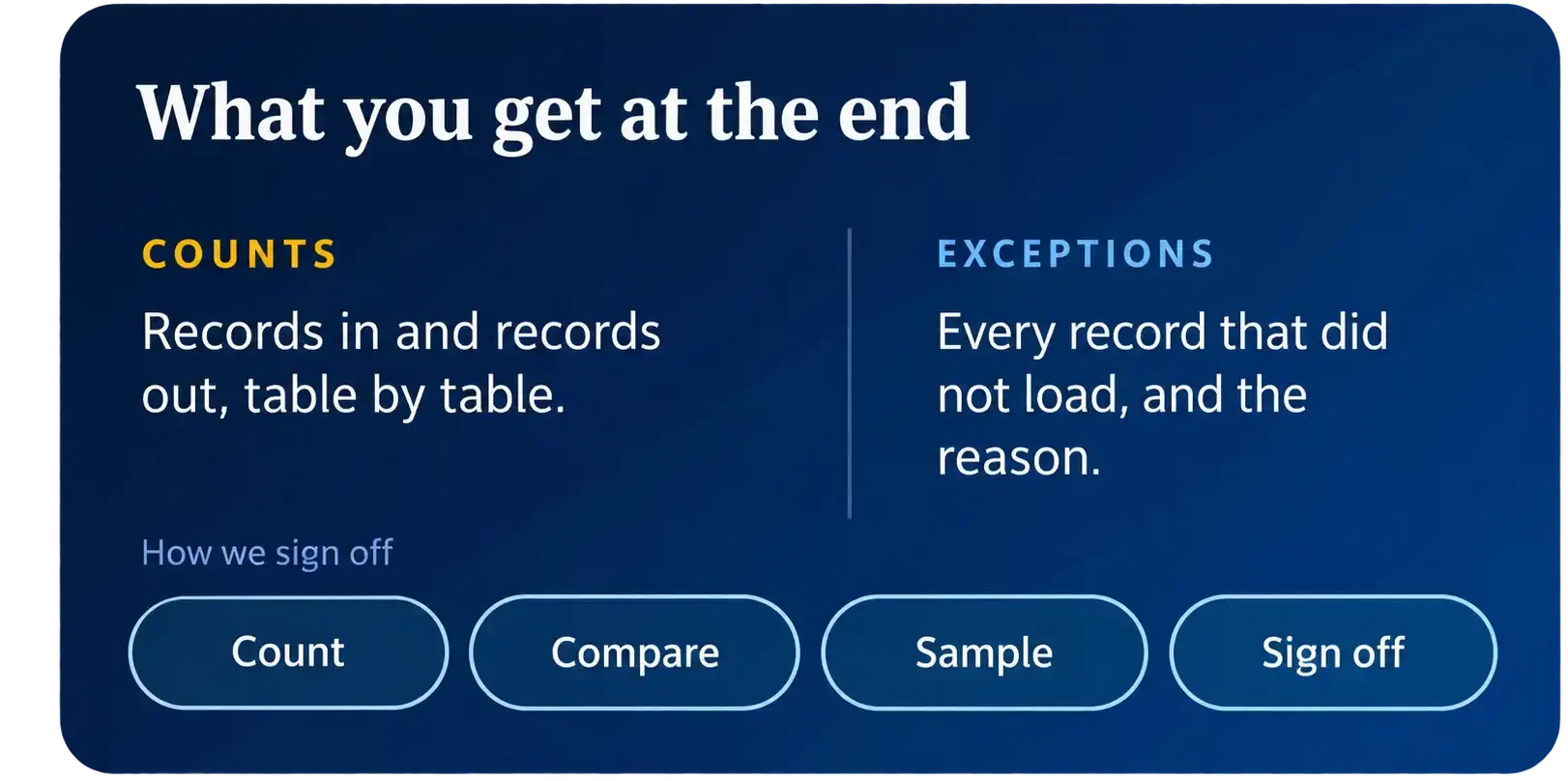
Once the move is done, the first question is always the same. Is it all there? Our word alone should not be enough. Every migration ends with a reconciliation. We count the records in each table in the old system and in Dynamics 365, and we compare key totals, such as the value of open opportunities. Where the numbers differ, we find out why.
Your team also checks records they know well, such as a large customer or last month’s deals, and compares the Power BI reports they use every week. We suggest keeping the old system open, read-only, until you sign off.

Yes, once they point to the new data, and that is part of our plan from day one. We make a list of every app, flow, Power Pages site, Power BI report, and Copilot Studio agent that reads the old data. Each one gets updated and tested before your team switches over.
Talk To Us About Your Migration
Tell us what you are moving and where it lives. We will tell you how we would move it.